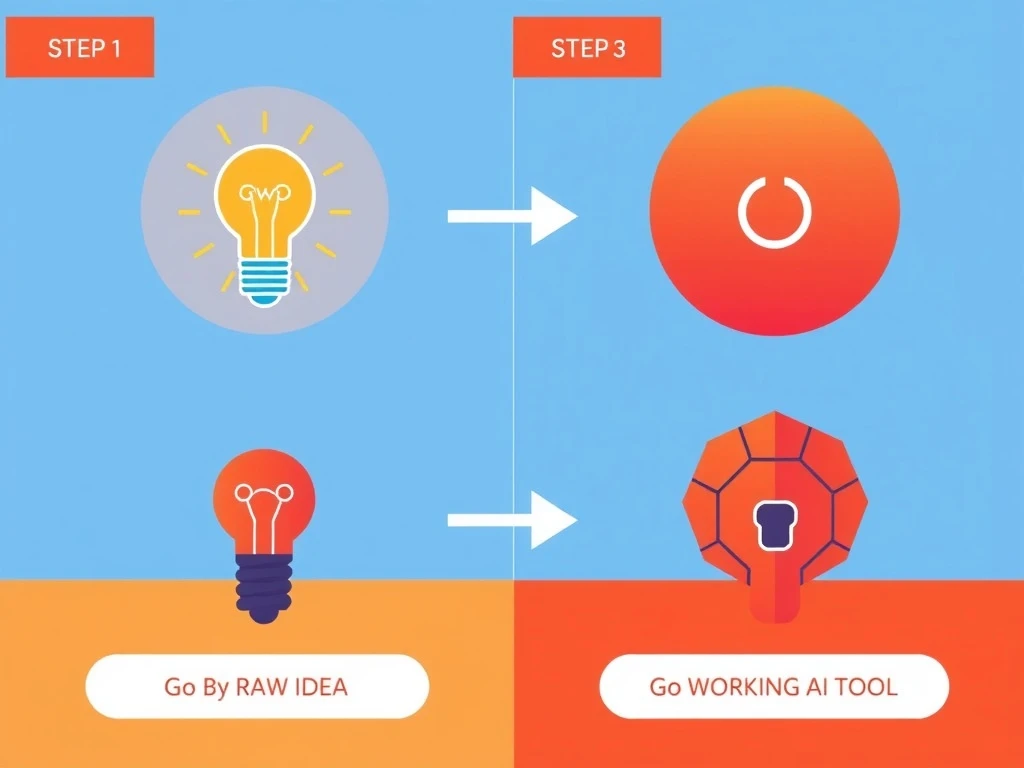
Google AI Studio Explained Simply: How to Go From Raw Idea to Working AI Tool in Minutes
Google AI Studio is Google’s simple, browser‑based way to turn a raw idea into a working AI tool using Gemini. You can prototype, test prompts, and export code in minutes. This guide walks you through what Google AI Studio is, how it works step by step, where it fits with tools like Google Colab, and how to use it alongside Lucid to map clear decision paths.
What Google AI Studio Actually Is (In Plain English)
Google AI Studio is a web tool from Google that lets you:
- Talk to Google Gemini models in your browser
- Design and test prompts
- Turn those prompts into ready-to-use code (Python, JavaScript, etc.)
- Share and reuse AI “experiments” with your team
Think of it as:
“A playground where you design how Gemini should behave, then export that behavior into your app.”
You don’t manage servers. You don’t need to know google compute engine. You just log in with your Google account and start building.
Under the hood, Google AI Studio sits on top of the Gemini API, which is powered by Google DeepMind research and infrastructure. But you don’t have to touch any of that directly.
Where Google AI Studio Fits in the Google AI Ecosystem
If you’re confused by all the Google AI names, you’re not alone. Here’s how they connect at a high level:
| Tool / Term | What it’s for |
|---|---|
| Google AI Studio | Browser playground for designing and testing prompts, then exporting code |
| Google Gemini models | The actual large language models (LLMs) you call from your code |
| Google Colab | Cloud notebooks where you run Python code (often using the Gemini API) |
| Google AI mode in search / AI Overview Google | AI‑powered answers and summaries inside Google Search |
| Google AI Essentials | Training content to learn the basics of using AI safely and effectively |
| Google Machine Learning Crash Course | Free ML curriculum if you want to learn traditional ML concepts |
So, a typical flow looks like this:
- Design and test your AI behavior in Google AI Studio.
- Export code (Python/JS) from AI Studio.
- Paste that code into a Google Colab notebook or your app.
- Deploy wherever you like.
Lucid steps in earlier in the process: you can analyze any dilemma, map features and constraints, and decide what you actually want your AI tool to do before you even open AI Studio.
Step‑by‑Step: Go From Raw Idea to Working AI Tool in Google AI Studio
Let’s walk through a concrete example:
You want to build an AI assistant that helps your team compare project options and summarize risks.
1. Clarify the Idea Before You Touch AI Studio
Most failed AI projects don’t fail on code. They fail on clarity.
Before you open Google AI Studio, spend 5–10 minutes mapping:
- Who is this for? (e.g., project managers)
- What should it do? (e.g., summarize options, highlight risks, suggest next steps)
- What are your constraints?
- Must respect privacy?
- Must answer in under 5 seconds?
- Must use a specific format (like bullet points)?
Lucid is built exactly for this step. You paste your messy idea or dilemma into our AI Decision Board, and we:
- Turn it into a clear options map
- Surface pros, cons, and consequences
- Show decision paths you could implement with AI
You can register to try this in a few seconds.
Once you know what you want, then open Google AI Studio.
2. Open Google AI Studio and Pick a Gemini Model
- Go to Google AI Studio in your browser and sign in.
- Click “New Prompt” or similar to start a new project.
- Choose a Google Gemini model, for example:
- A general text model for chat or analysis
- A multimodal model if you want to handle images or files
As a rule of thumb:
- Start with a balanced, general model for most applications.
- Only step up to larger models when you hit clear limits (quality, context length, etc.).
This is where AI sharpens everything: better model choice = cleaner answers = fewer hacks later.
3. Write a First Draft Prompt (Don’t Overthink It)
In the main prompt box, you describe:
- The role of the AI
- The structure of the responses
- Any rules or constraints
Example first draft prompt for our project assistant:
“You are a project decision assistant.
The user will provide several project options.
For each option, return:
- a short summary,
- top 3 pros,
- top 3 cons,
- main risks,
- a 1–10 priority score.
Answer in concise bullet points only.”
Hit Run with a simple test input. Don’t worry if it’s not perfect. You’ll refine.
4. Refine With Realistic Examples
AI behaves best when you show it real‑world examples.
In AI Studio you can:
- Add input examples (what users will actually type)
- Add expected outputs (what “good” looks like)
Do at least 2–3 realistic cases:
- A simple project choice
- A complex, messy one
- An edge case (very little information)
Each time, adjust your prompt:
- Tighten the format (“Use this exact section order: Summary, Pros, Cons, Risks, Priority”)
- Add constraints (“Never invent data you don’t have; say ‘Not enough information’ instead”)
- Clarify tone (“Neutral, professional, no emojis”)
Treat this like sanding a piece of wood: small tweaks until it’s smooth.
5. Use Parameters to Control Behavior
Google AI Studio lets you adjust parameters such as:
- Temperature – controls randomness/creativity
- Lower (e.g., 0.2) for consistent, factual tools
- Higher (e.g., 0.8) for brainstorming or creative writing
- Max output tokens – limits how long responses can be
- Safety settings – control how the model handles sensitive content
For a decision helper:
- Set temperature low (0.1–0.3) for stable, repeatable outputs.
- Keep max tokens reasonable so responses stay focused.
This is where a lot of people go wrong. They blame the model when the real issue is loose settings.
6. Turn Your Prompt into Code
Once you’re happy with the behavior:
- In Google AI Studio, look for “Get code” or “View code”.
- Choose your language:
- JavaScript (for web apps)
- Python (for backends or Google Colab notebook experiments)
- AI Studio generates a code snippet that:
- Calls the exact Gemini model you used
- Inserts your prompt
- Handles sending user input and receiving output
Copy this snippet.
From here you can:
- Paste into a Google Colab notebook to build a quick prototype app.
- Paste into your backend or frontend project.
- Wrap it with your own UI.
This “export code” step is what turns Google AI Studio from a toy into a serious Decision-making framework and tool.
7. Test With Real Users and Iterate
A working code snippet is not the finish line.
You now need to:
- Put a simple interface in front of it (form, chat box, etc.)
- Ask 3–5 real users to try it
- Watch where it confuses them, or where answers are too vague
Then you loop:
- Adjust your prompt in AI Studio.
- Re‑export the code.
- Update your app.
This loop is fast. That’s the power of AI tools like this: you can go from “not sure what I want” to “shipped v1” in a day.
Lucid can support this feedback loop too. Drop user feedback into an options map and let our AI Decision Board:
- Group complaints and requests
- Highlight the most impactful changes
- Show clear decision paths for your v2 or v3
You can signup any time you feel the feedback is getting messy.
How Google AI Studio Compares to Other Google Tools
Google AI Studio vs Google Colab
-
Google AI Studio
- No coding required to start
- Perfect for prompt design and quick experiments
- Exports code once you’re ready
-
Google Colab
- Full Python environment in the browser
- Great for data workflows, calling APIs, integrating with other libraries
- Often uses the code that AI Studio generates
A good pattern:
Design the behavior in AI Studio → move to Colab when you’re ready to integrate with data, APIs, or more complex logic.
Google AI Studio vs “AI Mode” in Google Search
Google AI mode in search and AI Overview Google are for reading, not building.
- Search with AI = you ask questions, get AI‑generated summaries and links.
- Google AI Studio = you design how AI should answer, then ship that as your own tool.
They use similar underlying models, but the intent is completely different.
How Training Fits: Google AI Essentials and ML Crash Course
If you’re new to this space and want to get more confident:
- Google AI Essentials is a lightweight way to learn how to use AI safely and effectively in your day‑to‑day work.
- Google Machine Learning Crash Course is a deeper dive into classical ML (not just prompt engineering) with videos, code exercises, and theory.
You don’t need either to use Google AI Studio. But they help you go from “playing with prompts” to making informed design choices.
Using Lucid + Google AI Studio to Design Better AI Tools
Most people jump straight into AI Studio and then get stuck in vague prompts.
Lucid helps by structuring the thinking first. Here’s a simple combined workflow:
-
Dump the idea into Lucid
- Paste your messy notes or dilemma.
- Our AI Decision Board turns it into options with pros, cons, and consequences.
-
Map constraints and success criteria
- Use our Grid or Table view to list:
- Must‑have features
- Nice‑to‑haves
- Constraints (time, budget, privacy, tech stack)
- Use our Grid or Table view to list:
-
Choose a clear decision path
- For example:
- v1 = text‑only assistant for risk summaries
- v2 = connect to project management tools
- This gives you a clean scope for your first Google AI Studio project.
- For example:
-
Translate the chosen path into a prompt
- Copy the structure from your Lucid board:
- Sections → response format
- Pros/cons → explicit instructions
- Constraints → rules in the prompt
- Copy the structure from your Lucid board:
-
Iterate with Lucid when feedback arrives
- Feed user feedback back into Lucid.
- Compare & decide on what to change next using our options map.
You can get started with this flow by creating a free account here: register for Lucid.
When to Use Google AI Studio vs. Something Else
Use Google AI Studio when:
- You want to go from idea → working AI behavior quickly.
- You need to experiment with prompts before writing much code.
- You’re building tools that interact via text, code, or basic files.
Use other tools when:
- You need heavy data pipelines or GPUs → Consider Google Colab + google compute engine.
- You’re training your own ML models from scratch → Look at Google Machine Learning Crash Course and more advanced infrastructure.
- You just want AI inside your existing workspace → Look at Gemini in Workspace (Docs, Gmail, etc.), not AI Studio.
Right tool for the right job. Google AI Studio is about fast, focused prototyping.