Google AI Studio Explained Simply: How to Go From Raw Idea to Working AI Tool in Minutes | Lucid
Google AI Studio Explained Simply: How to Go From Raw Idea to Working AI Tool in Minutes
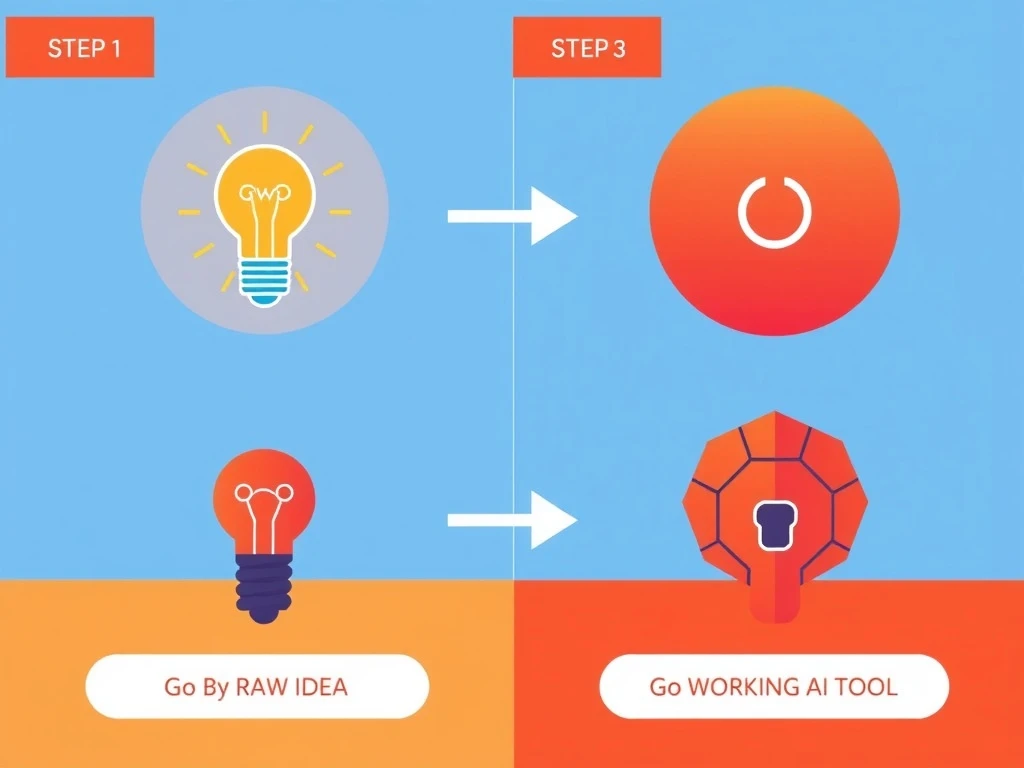
Google AI Studio is Google’s simple, browser‑based way to turn a raw idea into a working AI tool using Gemini. You can prototype, test prompts, and export code in minutes. This guide walks you through what Google AI Studio is, how it works step by step, where it fits with tools like Google Colab, and how to use it alongside Lucid to map clear decision paths.
What Google AI Studio Actually Is (In Plain English)
Google AI Studio is a web tool from Google that lets you:
Turn those prompts into ready-to-use code (Python, JavaScript, etc.)
Share and reuse AI “experiments” with your team
Think of it as:
“A playground where you design how Gemini should behave, then export that behavior into your app.”
You don’t manage servers. You don’t need to know google compute engine. You just log in with your Google account and start building.
Under the hood, Google AI Studio sits on top of the Gemini API, which is powered by Google DeepMind research and infrastructure. But you don’t have to touch any of that directly.
Where Google AI Studio Fits in the Google AI Ecosystem
If you’re confused by all the Google AI names, you’re not alone. Here’s how they connect at a high level:
Tool / Term
What it’s for
Google AI Studio
Browser playground for designing and testing prompts, then exporting code
Google Gemini models
The actual large language models (LLMs) you call from your code
Google Colab
Cloud notebooks where you run Python code (often using the Gemini API)
Google AI mode in search / AI Overview Google
AI‑powered answers and summaries inside Google Search
Google AI Essentials
Training content to learn the basics of using AI safely and effectively
Google Machine Learning Crash Course
Free ML curriculum if you want to learn traditional ML concepts
So, a typical flow looks like this:
Design and test your AI behavior in Google AI Studio.
Export code (Python/JS) from AI Studio.
Paste that code into a Google Colab notebook or your app.
Deploy wherever you like.
Lucid steps in earlier in the process: you can analyze any dilemma, map features and constraints, and decide what you actually want your AI tool to do before you even open AI Studio.
Step‑by‑Step: Go From Raw Idea to Working AI Tool in Google AI Studio
Let’s walk through a concrete example:
You want to build an AI assistant that helps your team compare project options and summarize risks.
1. Clarify the Idea Before You Touch AI Studio
Most failed AI projects don’t fail on code. They fail on clarity.
Before you open Google AI Studio, spend 5–10 minutes mapping:
Who is this for? (e.g., project managers)
What should it do? (e.g., summarize options, highlight risks, suggest next steps)
What are your constraints?
Must respect privacy?
Must answer in under 5 seconds?
Must use a specific format (like bullet points)?
Lucid is built exactly for this step. You paste your messy idea or dilemma into our AI Decision Board, and we: